Getting Started: Web Playground
The playground is the fastest way to try 4ward — edit, compile, and trace P4 programs in the browser.
Start the server
Clone and build if you haven't already:
Then start the playground:
The server prints:
Your browser opens automatically. If it doesn't, navigate to
http://localhost:8080.
Load an example
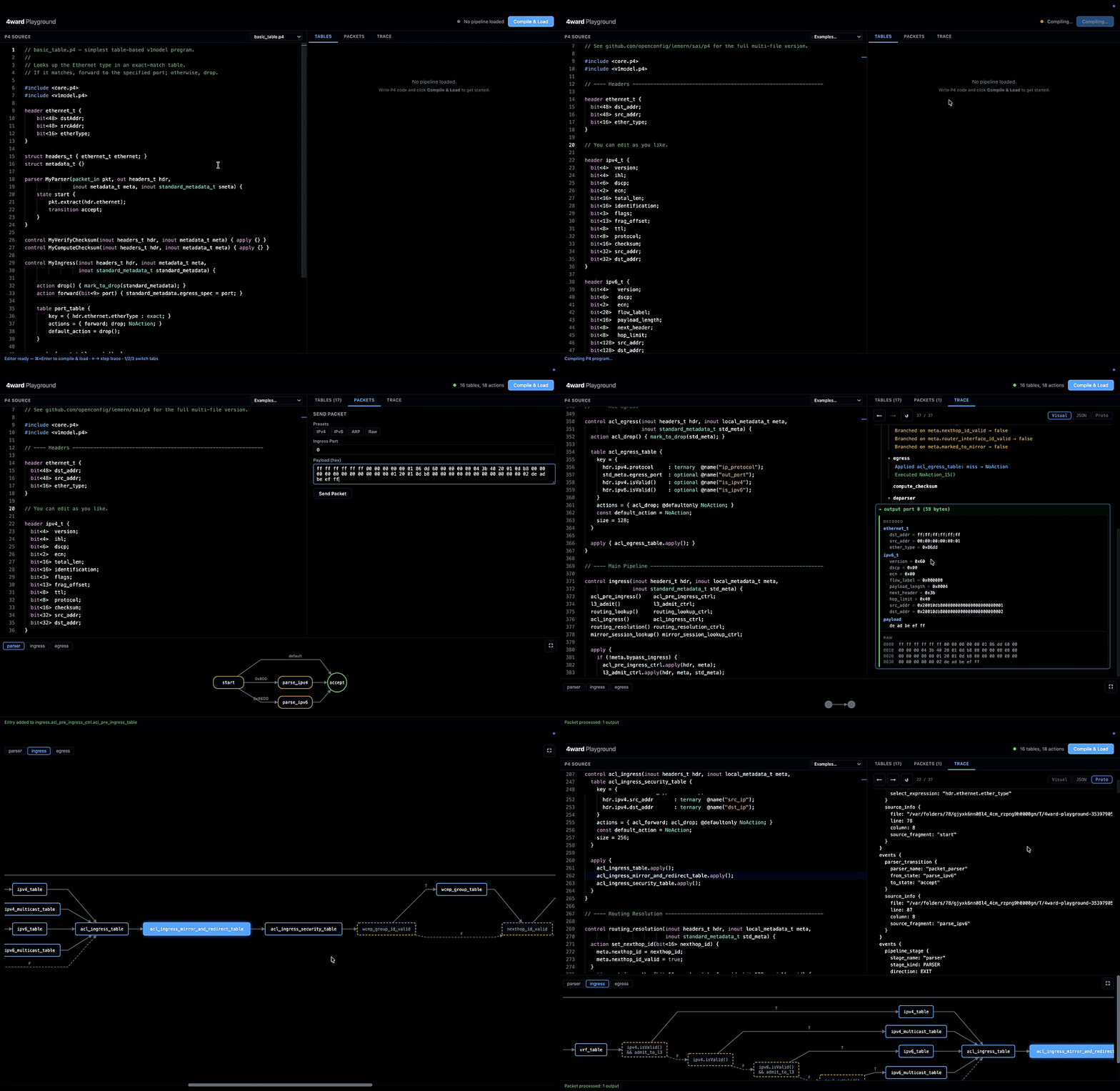
Click the example selector dropdown (top of the editor) and choose basic_table. You'll see a short v1model program with one table:
table port_table {
    key = { hdr.ethernet.etherType : exact; }
    actions = { forward; drop; NoAction; }
    default_action = drop();
}
Click Compile & Load. The status bar turns green and shows the pipeline summary (tables, actions). The control-flow graph appears at the bottom, showing the ingress pipeline's table and control flow.
Install a table entry
Switch to the Tables tab on the right panel.
- Select table port_table.
- Set the match field
hdr.ethernet.etherTypeto0x0800(IPv4). - Select action forward, set port to
1. - Click Add Entry.
The entry appears in the installed entries list below.
Send a packet
Switch to the Packets tab.
- Click the IPv4 preset — it fills the payload with a valid Ethernet + IPv4 frame.
- Set Ingress port to
0. - Click Send Packet.
The output panel shows one packet exiting on port 1 with decoded header fields.
Read the trace
Switch to the Trace tab to see every decision the simulator made:
- Parser —
start → acceptafter extracting the Ethernet header. - Ingress —
port_table: hit → forwardwith the matched entry details. - Action —
forward(port=1)executed. - Deparser — Ethernet header emitted (14 bytes).
- Output — packet exits on port 1.
Use the arrow keys (← →) to step through events one at a time. Each step highlights the corresponding P4 source line in the editor and the active node in the control-flow graph. Press Escape to reset.
Try a miss
Send an ARP packet (click the ARP preset) without installing a matching
entry. The trace shows port_table: miss → drop and the packet is dropped.
What's next
- Trace trees — understand the event types and fork semantics behind the trace visualization.
- CLI — run the same tests from the terminal with STF files.
- Reference — full playground feature reference.